
Account Sidebar Links allow Super Admins to add custom quick links to the bottom of the left-hand sidebar for all account users. These links can point to helpful resources such as support articles, video libraries, external websites, onboarding guides, or any other page you want to share with your clients.
These links can be used to direct users to:
- Help center articles
- Training videos
- Company websites
- Forms
- External resources
- Any other useful URL
This is a simple way to make important resources easier for your clients to find.
Who can manage Account Sidebar Links?
Only users with Super Admin permissions can add, edit, or remove Account Sidebar Links from the account settings.
Where do the links appear?
Once added, the links appear at the bottom of the left-hand sidebar inside the portal, underneath the main menu items.
How to add Account Sidebar Links
Follow these steps to add a new sidebar link:
- Log in to your portal as a Super Admin.
- Go to Settings.
- Scroll to the Account sidebar links section.
- In the Title field, enter the name you want users to see in the sidebar.
- In the Link field, enter the full URL.
- Click Update to save your changes.
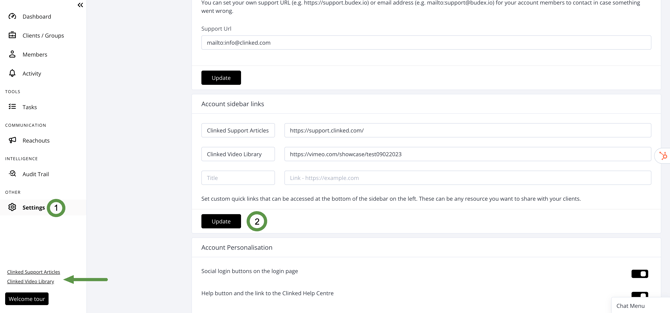
Once saved, the new link will appear at the bottom of the left sidebar.
If you have any questions or need help, please contact us via support@clinked.com.