
When the integration is enabled for a group, the Copilot agent becomes available within that group only. This allows you to enable or disable the agent for specific groups, or use different agents across different groups.
The Copilot agent is configured and managed within the Microsoft environment. This includes agent training, access control, permissions, and any other Copilot-related settings.
How to enable the Microsoft Copilot Agent integration- Go to the group where you want to enable the Copilot agent.
- Open the group settings.
- Navigate to the Integrations section.
- Turn on the toggle for Copilot.
- Paste the code snippet from your Copilot settings.
- Add any customisation for how the floating action button should appear.
- Click Enable.
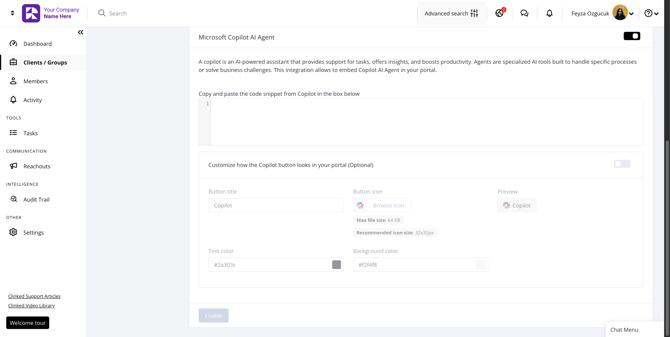
Once enabled, the Copilot agent will appear as a floating action button in the bottom-right corner of the group.
Requirements and important notesThis is a group-level integration, so it only applies to the group where it has been enabled.
Microsoft Copilot allows agents to be trained on a limited set of data for different chatbot-style use cases. All setup, training, permissions, and access control are handled within the Microsoft environment.
The Copilot agent does not have access to data in Clinked and cannot interact with Clinked content or functionality.
This integration is most suitable for enterprise-level clients who are already using the Microsoft environment and have the required knowledge to set up and manage Copilot agents. Clinked does not have access to, or control over, the agent’s Microsoft-side settings.