
The Microsoft SharePoint integration allows members to connect SharePoint files and folders to the Files section in Clinked.
This makes it easier for members to access relevant SharePoint content directly from within their portal, without needing to upload or host the files in Clinked.
What does the SharePoint integration do?
The integration creates a link between the Clinked Files section and a selected SharePoint file or folder.
The content itself is not stored in Clinked. Instead, the selected SharePoint item is displayed in the Clinked file list as a linked item. When a member clicks on it, the file or folder opens in a new browser tab directly in SharePoint.
This means Clinked acts as a bridge to the SharePoint item, rather than storing or managing the original file.
There are two parts to using the SharePoint integration:
- A super admin must enable the integration for the account
The integration needs to be enabled from the account settings before members can use it.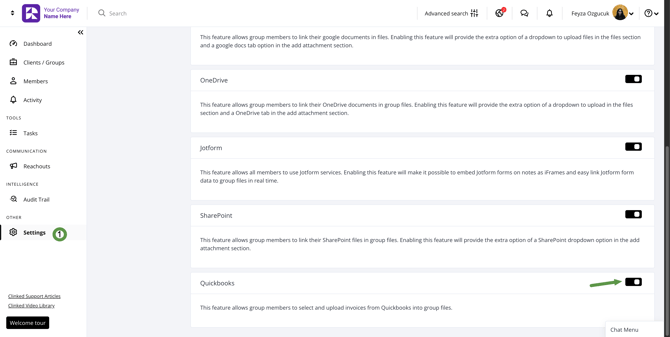
- Members must connect their Microsoft account
Each member who wants to access their SharePoint files through Clinked must connect their own Microsoft account.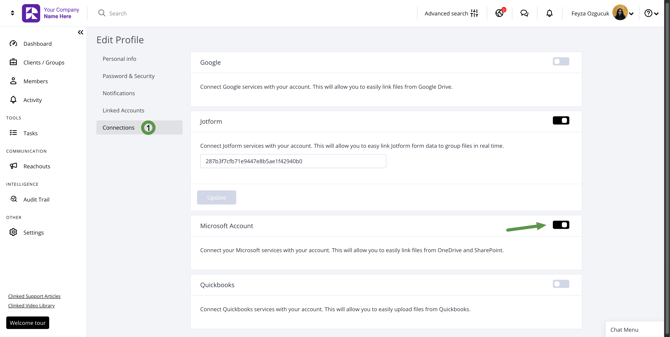
Please note that SharePoint is an enterprise Microsoft product and may require a paid Microsoft subscription.
How to add a SharePoint file or folder to Clinked
- Navigate to the relevant group or portal.
- Go to the Files section.
- Click the arrow-down icon next to the Upload File button.
- Select SharePoint from the dropdown menu.
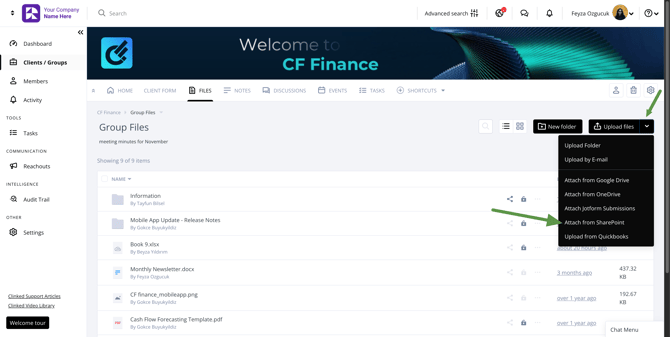
- The SharePoint selection window will open.
- Browse the available SharePoint files and folders.
- Select the file or folder you would like to link.
- Click Select.
- The selected SharePoint item will now appear in the Clinked Files list.
When the item is clicked, it will open in a new tab as a SharePoint file or folder.
How permissions work
The original file or folder permissions are managed in SharePoint.
Clinked does not control who can open, edit, download, or manage the original SharePoint content. These permissions must be managed directly in Microsoft SharePoint.
However, Clinked permissions can still be applied to the linked item inside the Clinked file list. This means you can control who can see the SharePoint connection within Clinked, but access to the actual file or folder depends on the user’s SharePoint permissions.
Important notes
- SharePoint files and folders are not uploaded to Clinked.
- Clinked only displays a link to the selected SharePoint item.
- Clicking the item opens it in SharePoint in a new tab.
- File access, editing rights, and sharing permissions are managed in SharePoint.
- Clinked permissions can be used to control who can see the linked item in the Clinked file list.
- Each member must connect their own Microsoft account to use the integration.
- A paid Microsoft SharePoint subscription may be required.
If you have any questions, please contact us at support@clinked.com.